Showing posts with label review. Show all posts

24 Oct 2024

HDFC Bank is the largest Indian bank for a reason

I used to be an HDFC Bank customer from 2011 through 2019. I didn’t need much from my bank account, and I was reasonably happy. A few bad experiences with the branch staff in 2019 made me resolve that I’d never be an HDFC Bank customer again.

We had an either-or-survivor (EoS) account with Lakshmi Vilas Bank (LVB). When DBS Bank took over LVB, they absolutely messed up the EoS operation mode of our account. They revoked online access of the joint holders without even telling us! We ended up going back to HDFC Bank for this EoS account because there weren’t any other good option in our town.

A year or so later, I opened a salary account with HDFC Bank since they had some very good offers for Google employees. I also got their top-of-the line Infinia credit card, which allowed me to simplify my credit card portfolio significantly.

Photo of an HDFC Bank branch

In the recent months, I have observed that HDFC Bank has built an attractive bundle of solutions to serve its customers.

  • They have credit cards that most people in the country find attractive. (Competition from Axis Magnus fizzled away quickly primarily because of Axis Bank’s hurried reversal of all benefits.)
  • SmartPay for bill payments is amazing. I have added all my bills—utility bills, credit card bills, everything—and SmartPay automatically pays the bills on time. I think the factors that make SmartPay different are: (i) the ability to pay even credit card bills not integrated with Bharat Bill Pay and (ii) the ability to pay using any of your payment instrument, be it bank account or credit card or debit card.
  • SmartBuy and PayZapp aggregate and organise all discount offers in one place. Every bank has partners that give discounts, but the SmartBuy portal makes utilising those offers a lot easier. This is HDFC Bank going the extra mile to make sure that everyone in the ecosystem—the bank itself, the customers, and the bank’s partners—actually benefit from the offers.
  • Features and offers tailored to specific demographics. The bank finds out what different subsets of their customer base may need and they build effective solutions for them.
    • Google employees get Alphabet shares as RSUs (restricted stock units). We sell those shares and bring the money to India. HDFC Bank offers an incredible forex conversion rate for such remittances. (This rate is even better than what Wise gives. That should tell you how good this offer is.)
    • Their credit cards for non-salaried businesspeople, (e.g. BizPower) gives rewards for paying GST. Paying GST through a credit card means the customer gets interest-free credit for over a month and they also earn rewards for it!

HDFC Bank is not the flashiest. Some of their processes are old school because they have been in this for decades. But the solution suite that they have built is compelling. They are the largest bank in India, and that’s not by accident. They have earned this place by serving the real needs of their customers.

7 Sept 2024

Comparing auto-sweep accounts of 3 banks

I like bank accounts with automatic sweep-in and sweep-out functionality. When the saving account balance goes above a threshold, the excess is automatically made into a fixed deposit. When we overdraw from the saving account, fixed deposits are fully or partially liquidated to replenish the saving account.

People who want to optimise the interest they get from their deposits may not like this functionality. To optimise the return, one would want to choose the best yielding deposit duration at the time of opening the deposit and have control over which deposit is liquidated when money is needed. But I like this functionality for the simplicity it provides. I just ignore the deposits and use it like a saving account that pays a higher (but unpredictable) interest.

I have used this functionality at 3 different banks—Axis Bank, HDFC Bank, and Kotak Mahindra Bank. This post is to compare the 3. We’ll look at each bank in alphabetic order.

‘Deposit Account’ by Nick Youngson CC BY-SA 3.0 Pix4free.org

Axis Bank

Axis Bank calls this Auto Fixed Deposit. This can be enabled on any saving account.

The customer can choose the parameters such as the threshold at which new deposits will be created, duration of the deposits, and the frequency of deposit creation. The lowest allowed threshold is ₹25,000.

Their net and mobile banking apps have a UI to enable this functionality, but they did not work. (But that’s typical of Axis Bank—most of their tech solutions don’t work.) I had to give a written request at the branch to enable this. It appears I can now disable Auto Fixed Deposit from net banking, but it does not give the option to change the parameters. 

Net and mobile banking apps show the cumulative value of the account balance and connected fixed deposits everywhere. This makes it easy to see how much you can draw from the account. If you want to find out how much money is sitting in the saving account excluding fixed deposits, you need to manually calculate that.

HDFC Bank

HDFC Bank allows this functionality only in their Savings Max Account product. It appears that auto-sweep cannot be enabled on other account types such as salary accounts.

Configuration such as the balance threshold, deposit duration, and frequency of deposit creation are decided by the bank and the customer cannot tweak them. The threshold is set at ₹1,00,000, which is not too bad.

Since this functionality is available in only a specific account variant, you need to work with branch staff to avail this functionality.

Net and mobile banking apps show only the cash that’s in the saving account. Nowhere can you see how much you can draw from the account. You need to manually sum up the fixed deposit values and calculate that number if you need to know.

Kotak Mahindra Bank

Kotak Mahindra calls this ActivMoney. This can be enabled on any saving account.

Configuration such as the balance threshold, deposit duration, and frequency of deposit creation are decided by the bank and the customer cannot tweak them. But the threshold is set to ₹3,00,000 for their Privy League customers making this somewhat less appealing for their top-tier customers.

You can enable and disable this feature any time from their mobile app. It’s a simple toggle that you can turn on or off at any time.

Kotak Mahindra net and mobile banking apps try to show both balances—with and without factoring in the swept deposits—to give a clear picture of the customer’s holdings. But this also leads to a somewhat confusing experience of seeing different balances at different places. The customer needs to know whether the shown balance includes deposits or not as the bank doesn’t explicitly label that.

11 Apr 2022

Jupiter Pots: an essential tool for the financially organised

I am an organised person. I like it when things are where they belong. I don’t like it when they are scattered around or piled up as a mess. I recently recalled how I have been getting better at financial discipline. Getting better means better organisation, and better organisation means reduced clutter. Unfortunately, most financial products on the market don’t offer much to reduce clutter.

One of the things I have been focusing on in recent years is to reduce the impact of unplanned or unexpected expenses. I have a residential property which earns rental income. I sell mutual funds fairly regularly, which results in capital gain. I need to pay advance tax for these incomes every 3 months. It’s easy to move some money into a separate account (bank account, mutual fund folio, etc) to meet such upcoming expenses. However the real trouble is keeping track of how much money is in that account for what expenses. It’s very easy to forget why we moved money into this account, which causes this account to become an unorganised pile of cash. We can see how much money is kept aside, but it’s hard to tell if we can take, say ₹5,000 from this account to spend on something.

An unorganised pile of cash and coins
Jon Eben Field, CC BY 2.0, via Wikimedia Commons

In theory, ICICI’s iWish accounts should fit this bill, and that’s the first thing I tried. But turns out, iWish is way too rigid for my needs. Here’s an example. We buy contact lenses every 3 months, and I wanted to save every month for that. But I couldn’t because iWish has a minimum tenure of 6 months. Often, I just want to keep some money aside without a “goal amount” that I want to save. For example money kept aside for an upcoming repair work or advance income tax payment. iWish does not support simply keeping some money aside either.

This lack of tooling support came up during a conversation with my coworkers. One person suggested that I take a look at Jupiter.money. Jupiter has a feature called Pots that is precisely for people like me. I can create and destroy pots at will; I can keep money aside as long as I give the pot a name (such as “income tax advance” or “floor repair”). No need to define a tenure or specify a goal corpus. The moment rent comes into my bank account, I move some amount to the “advance tax” pot. I have a “contact lens” pot into which I move money every month (and withdraw once every 3 months). At any point in time, I have the clarity of whether I have saved up for a certain expense, and how much.

Jupiter Pots is a good example of how I want my tools to be: simple, flexible, and without arbitrary rules (such as iWish’s 6 months tenure). Give me the basic building blocks and let me compose those blocks in the way I need/want. Tools that pretend to know how they will be used often end up too rigid, similar to iWish. (The flipside is that a tool that lacks a rigid structure is not useful to people who just want readymade solutions. There is room for products like iWish in the market; just that I don’t want those tools in my own tool set.)

Ever since I started using Jupiter Pots, I feel like I have found the missing brick in the castle that I have been building; my safe and organised castle where everything is tidy inside.

• • •

PS: I am not paid by Jupiter to write this post; nor am I affiliated with Jupiter other than as a customer.

1 Mar 2022

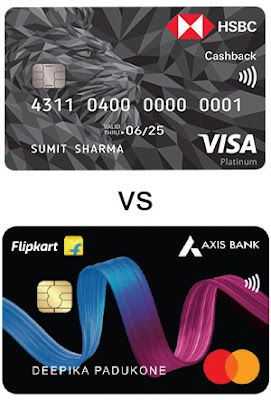
HSBC Cashback vs Axis Flipkart credit cards

I am a ‘cashback harvester’. I spend way more energy than I should in maximising the credit card cashback I earn. What follows is minutia around cashback policy of 2 credit cards. If such petty details are not your thing, you’ll be better off skipping this post. 🙂

I hold multiple credit cards and I consciously choose the right card to use for every transaction. The ‘right’ card is the one that gives the maximum cashback, of course. Until a few weeks ago, HSBC Cashback card was my default card, primarily because that was the best among what I had (i.e. this is not an objective judgement or recommendation). Then I got Axis Flipkart card and started using the Axis card for everything because it gives me 1.5% cashback on all spends while the HSBC card only gives 1.5% cashback on online spends. But the first statement for my Axis Flipkart card reminded me of the old saying, ‘the devil is in the details’. Let’s look at how the HSBC Cashback card continues to be the better card in some areas.

  • Any spend less than ₹100 will not earn any cashback on the Axis card. The HSBC card doesn’t say anything like it.
  • Cashback on the Flipkart card is rounded down to the nearest whole rupee for each transaction. Doing this for each transaction means the aggregate cashback Axis gives is considerably lower than what one might expect looking at the statement total. For example, I spent ₹181 on the card and that has fetched me ₹2 cashback. One would expect to receive ₹181 × 1.5% = ₹2.715, but will have to forego ₹0.715 because of the rounding down.
This means that I should continue to use the HSBC card for:
  • all online transactions because there’s no rounding down
  • any transaction less than ₹100, be it online or offline

While the HSBC card continues to remain relevant for me, I must also highlight that Axis Bank’s credit card statement makes it very easy to see how much cashback is being earned for each transaction. HSBC doesn’t reveal as much information, so the customer will have to do the math themselves to see if they are getting cashback for every transaction that they think they are getting cashback for.

11 Jun 2016

Thoughts on HP Chromebook 13 G1

When I first heard about HP Chromebook 13 G1, I immediately wanted one. For three reasons: (i) 3200×1800 screen, (ii) USB type C charging, and (iii) the looks. As soon as it became available, I bought the 8GB RAM variant with the Core m5 processor. I have been using it for a few days now; this post is to record my thoughts on this laptop’s hardware.

Things I like
  • This is the first hardware device ever that made me like it for its build quality. I really like the metal build of the machine and its strong screen hinge.
  • USB type C charging. Of course! It’s one of the reasons I even bought this laptop.
  • Keyboard is really nice to type on. Has good tactile feedback. Way better than the 2015 Toshiba Chromebook 2 I was using before.
  • Touchpad is smooth. I can actually use this touchpad for an extended period of time without my fingertips asking me to stop.
  • Some reviewers are not fond of the B&O speakers that come with this laptop, but I like it. (But then, my reference points are Toshiba Chromebook 2 and ThinkPad P50. Coming from these laptops, I would like pretty much anything.) From what I see, this Chromebook 13’s speakers are on par with the speakers of Nexus 9.
  • There’s an LED that shows status when the laptop is sleeping, charging, etc.
    LED glows red when the laptop is charging
Things I neither like nor dislike
  • Although the screen is impressive on paper, it doesn’t live up to the expectations in reality. I believe it’s the same panel that was in Lenovo’s Yoga 2 Pro. I can see pixels on this screen just as I could on the Yoga 2’s screen. Yellow rendered by this screen is the same dull yellow like on the Yoga 2 Pro (expand the “spoiler” to see the colour difference). When I am not actively looking for pixels or colour accuracy, this screen is nice; I can live with this. 
Things I am not a big fan of
  • There’s exactly one USB Type A port. I need to always have a security key inserted into a USB Type A port, so I have zero usable Type A port. I don’t often plug things into my Chromebook but it’d still be nice to have a free port.
  • MicroSD card reader. The only place where I use an SD card is on my digital camera, and it’s a full-size SD card. So this MicroSD card reader is essentially useless to me.
Comparable devices
Anyone considering the m5 variant (with 8GB RAM) or a more expensive option should also look into the base model Chromebook Pixel 2. For less than $200 more, you get a better screen, more USB ports, Type C ports on both sides for easy charging, and more Google Drive storage quota. The HP has an edge over the Pixel in its fanless design and being lighter and thinner. It’s a choice you’ll have to make for yourself. (I am still torn, and I honestly can’t choose between the two.)

4 Nov 2015

A few months ago, I dropped my 2014 Moto X and ended up with a shattered screen. While the phone was out for repair, I used a Galaxy Nexus for a few days. Typing on the smaller screen was so painful I realised I couldn’t go back to a smaller phone.

When I was in India a couple months ago, my brother bought a Moto X Play. The Play has a 5.5-inch screen. When I was in India, I used that phone once in a while, and the size didn’t seem all that unmanageable. Actually, it didn’t feel much larger than the 5.2-inch Moto X I was using.

In the context of both of these experiences, I decided getting a Nexus 6P will not be such a bad idea. And I received my 6P today.

Nexus 6P in box

My initial impressions after having the phone for about 5 hours:
  • I’m already missing Moto X’s Active Display feature. (It’s a shame new Moto X uses an LCD display. Active Display with the whole screen lighting up is much less nifty.)
  • I was thinking that the official case sold by Google would inhibit the use of NFC. But it looks like it really may not. I only wish they offered the case in more colours. Both the black and grey are boring colours.
  • As expected, the phone doesn’t feel too big on the hand. But the real test is when I put it in my pant pocket and ride a bicycle. I’ll know it in a few days. Good so far, though.
  • Setting up the phone was super-easy with the new ‘Set up nearby device’ option. It copied over all my apps and almost all settings. Installing all the apps took about an hour or so, but I didn’t have to hunt for apps, so it’s a win.
  • Moving WhatsApp messages to the new phone was a pain. I copied over WhatsApp’s entire folder and still WhatsApp only restored messages till last week. Messages from the past few days are just gone.
  • Fingerprint reader is nice, but I do find the placement a bit hard to use. Hopefully I’ll get used to it in a few days.

In short, nothing spectacular, and also nothing terrible. Let’s see how this goes!

18 Dec 2014

First week with my Moto X

I have been using my Moto X for about a week now. Thought of recording some initial impressions.

About me
First, some background on me. I used the G1 when it came out. Ever since Nexus One, I have been using a Nexus phone. Except for Nexus 5, I upgraded to every single Nexus phone as it came out. Moto X is the first ever non-Nexus Android phone I have used.

Why Moto X?
I had been using a Nexus 4 since it came out in 2012. I wanted to upgrade to a newer hardware. I didn’t go with the Nexus 6 because it’s too big. Also, Motorola has a good track record when it comes to pushing new versions of Android more quickly than other OEMs. Getting updates quickly is critical to me.

A month or so ago, a coworker brought a 2014 Moto X with him. I held the phone for about a minute in my hand, and immediately wanted to get one myself. From MKBHD’s review, I learned the Moto X’s camera is not all that bad. Overall, Moto X satisfied many of my requirements, so I decided to buy it. (I got a $140 discount on the phone’s price, which was icing on the cake.)

Ordering the phone
Moto Maker is awesome. Designing and ordering the phone was a breeze. I got to pick and choose colours, which was amazing. All Nexus phones have an all-black front, but with the Moto X, I was able to get a white front... something I have always wanted.

Hardware
The phone is very fast. Surprisingly, Moto X boots a lot faster than its more powerful sibling Nexus 6. (Maybe it’s because of the Nexus 6’s encrypted storage, which is known to slow things down.) In my usage, I never had to wait for the phone; it was fast in everything it did.

The screen is gorgeous. Upgrading from Nexus 4’s dull screen, this is a pleasure to look at. I’d put this screen above the Nexus 9’s screen (the other Android I use on a daily basis). The camera is passable (sample pictures).

With the top and bottom looking almost the same, it’s kinda hard to tell if you’re holding the phone upside down. But you’d quickly learn to orient the phone correctly. The edges are metal, which made it uncomfortable to hold the phone while talking. Maybe this is another thing that I’ll get used to over time.

The phone does not have a stereo speaker like the Nexus 6, but it’s pretty loud. Notifications and phone calls are also much louder than the Nexus 4. Finally, I can hear when my phone rings in the next room. In-call sound clarity was also noticeably better than the Nexus 4.

Software
This is the first time I use a non-Nexus phone, so I wasn’t sure how Motorola’s software additions will affect the experience. So far, I have been fairly happy with what Motorola has chosen to add to the phone.

The phone has infrared sensors to detect when you reach for the phone. The moment I am going to grab the phone, screen turns on automatically. I never have to press the power button to turn the screen on. It saves maybe half a second, which may not seem like a lot. But it does matter because I know I am annoyed when my Nexus 9 doesn’t automatically wake up when I want to use it.

Similarly good is “shake to open camera” gesture. With my previous phones, I’d have to press the power button, open camera by sliding the lock screen, and then start shooting. Now I can simply shake without even having to look and the camera is ready. I really like it. The camera is supposed to capture more shots than the ones you take and suggest you to keep the better shot. I haven’t had the phone long enough to actually need that feature yet.

Possibly my most favourite feature is you can customize the “Okay Google” phrase and choose anything you like. I have never liked saying Okay Google, so this is a big plus for me. Speech recognition is good, and voice commands are useful. When I need to do something quick — like a unit conversion or adding a reminder — I turn to my phone and ask it to do it. No need to wake it up; no need to unlock the phone. It just works.

Motorola slowly teaches you how to effectively use the phone by showing notifications about new features every once in a while. It’s way better than dumping everything at you while setting up the phone.

Gripes
Nexus phones come with a dialer app that has two nifty features: you can search for local businesses from within the dialer and it does reverse business lookup when you are making or receiving a call. If I want to call Pizza Hut, I can type Pizza Hut in the search box of the dialer app and it’ll find local Pizza Hut’s phone number. Similarly, if Fedex calls me to alert me about a package, caller ID would show “Fedex” instead of the number they are calling from. Moto X does not come with this dialer, which is a bit of a letdown.

I am mostly used to it now, but I sometimes find the phone a little too large to hold and use. Especially when I have to use it one handedly.

Conclusion
Overall, I have been very happy with the Moto X. If you are on the fence on buying this phone, I’d urge you to just buy it. You may not even want to go back to a Nexus phone in the future. :)

27 Jan 2014

2011 BMW X3: first impressions

I have been driving a 2011 BMW X3 for 3.5 days now. Thought of recording my initial impressions with the car. (I know it’s not technically a car, but calling it a car makes talking about it easy.)
I was driving a rental Chevy Sonic Hatchback until I got the X3. Switching from this puny car, I didn’t like the X3’s handling in the first two days. The car felt massive and heavy. I think I am starting to get used to the bigger car now.
Compared to the Jeep Cherokee I test drove, however, the X3 was nicer to drive. The X3 had a lot less body roll, and the suspension was a lot smoother on the X3. Cherokee screams “utility” wherever you look. It had plenty of storage space; it had a wireless charger in-built; it had a 110V plug point. X3 doesn’t have as much storage space, which is a bit inconvenient at times.
I didn’t get to choose the features of my X3 because it was a used car. But I’m quite happy with the feature set my X3 has. Putting essentials like bluetooth audio streaming, navigation, etc. aside, the first thing I liked about it was keyless entry. I can open, drive, and lock the car with the key in my pocket. I don’t even have to touch the key. This is liberating, and I love it. The next thing I noticed was that it has auto-dimming mirrors. Looking in the mirrors at night is very pleasant. When I was driving inside Yosemite National Park last night, my car’s headlights turned in the direction of the steering wheel so I could see what was on the road before the car turned. This is a nicety that you won’t much notice when you have it, but a pain when you don’t have it. I’m glad my car has it.

The car’s engine response is good. Cruise control is great too. When the car is on cruise control, the speed never fluctuates no matter how the road is. It climbs up or down the hill with no change in speed — very impressive.

In the last two days, the car’s overall fuel consumption has been 27.2 mpg (11.56 kmpl), which is better than the quoted numbers (19 mpg city, 25 mpg highway).
Overall, the car has been good, I am happy with the purchase. Although my plans to try off-roading may not work out well with this AWD car.

30 Dec 2013

A Next Page button can make Kindle Paperwhite 10x more fun

Kindle Paperwhite is small: it has a 6-inch screen while Nexus 7 has a 7-inch screen and iPad Mini has a 7.9-inch screen. The Kindle is lighter too: it weighs 206 grams while Nexus 7 and iPad Mini weigh 290 grams and 331 grams respectively.

Despite being small and light, the Kindle is hard to use single-handedly. I can hold the reader by wrapping my hand around its back, but then I can’t use any of my fingers to turn pages. (It’s also a bit uncomfortable to hold it that way, actually.)
I can hold it on just one side, but turning pages will still be impossible with one hand. Turning pages will require me to move my thumb onto the screen.
Adding a hardware Next Page button right where my thumb is will make it easy to use the Kindle with just one hand. Why didn’t you think of that, +Amazon.com?

9 Jan 2012

Samsung Galaxy Nexus: first impressions

I have been using a Samsung Galaxy Nexus for a few days now.  I have been an Android user since the G1 days; there isn’t much I have to say about the software in this post.  I like Android and I don’t think any other phone software is a good choice for my usage.

Talking about the Galaxy Nexus’s hardware, it’s an enormous phone.  Very wide, but it manages to fit in my hand by being very thin.  I like the feel of holding the phone in my hand (disclaimer: I have never held an iPhone for more than a few minutes).  Battery life is good; super fast camera doesn’t look like a big improvement, but I’ll know the difference only when I have to use a slower camera.  The phone is crazy fast in pretty much everything it does, and fast is almost always good.

One of the things I was excited about was the phone’s higher (than my previous phone, Nexus S) display resolution.  Text on the Galaxy Nexus is clearly crisper, and gives a better reading experience.  But I can still see “pixels” on the screen... more specifically tiny “holes” on white surfaces.  Apart from that I don’t really have any concern.

19 Jun 2011

Go: first impressions

After having written about 300 lines of Go code for something meant to be used in the real world, I have mixed feelings about Go.

Things I like
  • Static typing done really well.  Lightweight interfaces (see Rotting Cats section of Go tutorial), type inference, closures, etc. make the language fun like a dynamic language.
  • Clean standard library.  The interfaces are well thought out, and names are picked well.  Effective Go, the document that describes the design/style ideas used by the Go project says "long names don't automatically make things more readable" and I can't agree more.
  • Google App Engine support for Go.  This is the deciding factor for writing my current app in Go.
  • Object oriented programming without fetters.  There are no classes.  There is no type hierarchy.  You can define methods for any type, even those defined by a third party library you don't have source code for.
Things I have to get used to
There are certain things that are not entirely new to me, but I have almost forgotten because I have been coding mostly in Python and Java.
  • Values are different from pointers.  I can define a method on a type like this:
    func (o MyObject) Increment() {
        o.count++
    }
    But this will silently fail because o's type is not *MyObject.  So when I call myo.Increment(), myo is passed by value, i.e., a copy of myo is passed to Increment, not a reference.
  • Crashes and core dumps.  Because the code compiles to native code, you can easily crash your program by dereferencing a null pointer or accessing a nonexistent index in an array.
Things I don't like
  • Errors are returned, not thrown.  In most modern languages your code is mostly free of error-handling because either you want to propagate it to the caller or you can handle them all in one place (with a try-catch).  Go doesn't have exceptions.  So you have to check for errors after calling every function that may return an error.  If you forget to do that, too bad, the error is silently ignored.

17 May 2011

Honeycomb: first impressions


Have you used the G1?  That was the first ever phone to run Android.  No one liked it.  It sure did a number of things well, but it didn't quite meet the needs of most people.  A year later there was Nexus One, with Eclair on it.  That's when many people had a real choice: they could choose between an iPhone or an Android phone running Eclair.

Honeycomb is a version of Android that's designed specifically for running on tablets.  Though the name of the OS is the same and it can run all pre-Honeycomb apps, it's a very different beast.  It's so different that it frustrates people that expect the UI to resemble what they're used to.  So what if it's different?  It means most of the stuff is newly built.  Expect the quality of G1 from current Honeycomb tablets.  They are unfinished, and the Tab I am using now crashes every day.  Every single day.

I liked the G1.  It was much better than the phones I had before.  It was better than the iPhone for my use because I don't live in Apple's walled gardens.  I have been wanting a tablet since the day I saw Steve Jobs announcing the I pad in January 2010.  Now I am happy with my Tab.  If you are not the kind that can forgive buggy software, or if you are not dying to get your hands on an Android tablet, I'd advise that you wait until tablet versions of Android stabilises.  Won't be very long.

8 May 2011

Why I am not moving away from Linux any time soon

  • KDE is freakin' awesome.  In addition to making all sorts of customization possible, it gives me tons of tools to make my life easier.  I cannot possibly list everything I like about KDE, so here's a tiny list:
    • Klipper remembers n recent clipboard contents, so I don't accidentally lose some text I copied.
    • KDE's Run Program dialogue lets me do things like doing simple math, doing a Google search, switching to a different app, etc.  This is the kind of convenience that doesn't sound like a big deal first, but you miss it when you don't have it.
  • Extremely powerful, customisable command line shells.  I am a keyboard junkie.  I do most of my work on the command line.  I play my music and movies, browse through my files, etc. from the command line.  And I can automate any random chore by writing shell scripts.
  • It has awesome media players.  Mplayer is my favourite.  It plays any random codec you throw at it, out of the box.  Oh, and it has configurable keyboard controls for everything.
  • Ease of migration.  A few days back I wiped my hard disk and upgraded to 64-bit version of Kubuntu.  I was able to export the list of programs I had installed before wiping and reinstall all those apps with 2 simple commands.  All programs keep their configuration under home directory, so I didn't have to reconfigure any program.  I cannot imagine such an easy migration on Windows or OS X.
  • Most, if not all, browsers natively support playing Windows media format.  I just found this online Tamil radio and it Just Works on Chrome, out of the box.  (I don't think it would work on OS X.)
  • Efficient use of resources.  My netbook really would suck when running Windows 7 merely because the hardware is cheap.  But it easily handles Kubuntu.  The OS and apps are not memory hogs.
  • The Unix culture has a good taste in user interface.
    • Apps don't show you useless notifications.  I had booted into Windows 7 for a while last week.  My machine's audio driver showed me a popup notification every time I plugged in or removed headphones!  I can't imagine a Unix program daring to do anything dumb like that.
    • No frequent reboots required like Windows.  (I admit that it's been a long time since I have used Windows; they might have reduced the frequency of reboots now.)
  • Vastly secure than Windows and OS X.  No viruses.  No OS design flaws that make the system terribly insecure.

12 Apr 2011

My experience with Samsung N150+ laptop

I bought a Samsung N150+ laptop about 2 months ago.  I have been extensively using the laptop since then.  I use it for a lot of browsing, literally no gaming, sometimes to watch videos, occasionally writing some code.

After using it for a while, I think I'm quite happy with the device.  I like the fact that it has an anti-glare LED display and very portable at only around 1.25kg.  There are, of course, a few shortcomings.

The machine isn't very powerful.  If you want a lot of processing power, this laptop isn't for you.  I believe that we only get what we pay for, and the price point of 17,500 INR justifies the reduced horsepower.  (It has 2GB of RAM, which is twice as much as most comparable laptops.)  Also, the fact that I run Kubuntu helps.  I haven't tested extensively, but I believe that Windows 7 will be slower on this machine than Linux.

I hate wide screen displays.  This laptop's 10" screen also has wide screen aspect ratio (1024×600).  I recently figured out that keeping the task bar on the left side makes the effective screen aspects a little less wide.  It also gives a little more vertical space to apps.


Overall, I am quite happy with my purchase.

13 Feb 2011

My experience with the Kindle

Few of my friends have considered buying a Kindle and are hesitating because they are not sure what they are getting into.  They aren't sure, for example, if the Kindle can give them a good reading experience without the "feel" of holding a paper book.  This post is a short summary of my experience with the Kindle.  (I have a Kindle 2, by the way.)

First, the negatives.  Turning pages is slow.  It works pretty well when we are reading normally, so you won't notice it most of the times.  But it feels very slow when we want to hop back 2 pages to take a momentary look and continue reading from the current position immediately after.  Books with complex layouts (e.g. books with code) can be difficult to read.  It's just not possible to lend books to your friends.  And not all books are available in the Kindle format.

Now the positives.  It's amazingly light and extremely portable.  I read Anna Karenina using the Kindle.  I can't imagine carrying a fat heavy paper book everywhere I go.  Because Kindle lets me take notes on the device itself, collecting quotes is really simple.  I'd just highlight interesting quotes as I read and they'd magically appear on my Kindle page on the Amazon's site.

It might sound strange but I choose books based (also) on their typography.  If a book uses an ugly font (Arial!) or very small text size, I usually won't buy it.  Long back, I bought a copy of The Fountainhead but never could read more than a few pages until I gave it away a few weeks back.  All because of its tiny font size.  Kindle, because it allows me to change the text size to suit my eyes, solves this problem completely.

True, Kindle doesn't have a backlight so it's not possible to read when it's dark.  There are several solutions to the problem.  You can buy a case with an attached reading light.  Or you can read using the Kindle app on any of your other devices.  Because the Kindle and these apps always sync to the cloud, they automatically take you to the last page you were reading across all devices -- this is a pretty cool feature.

I am not a native English speaker, and my vocabulary isn't great.  Every time I read a book in English I need to look up hundreds of words on the dictionary.  Either that would be a distraction and would take up a lot of time.  Or I'd read on without fully appreciating what's being said.  Kindle has a built-in dictionary that's very well integrated with the device.  It's fast and doesn't require net connection.  It saves me a lot of time and provides an improved reading experience.

I once thought I would miss paper books after using the Kindle as my primary reading device.  On the contrary, I often miss the Kindle now when I have to read paper books!

22 Jan 2011

127 Hours

Just finished watching 127 Hours.  I don't know what I feel.  I have broken my bones and I know how much it hurts.  That night, after I fell off my bike I tried to get up, but I couldn't.  So I lay back on the road expecting someone would come to help me.  A very generous person stopped his car and asked "Are you okay?"  I didn't think for a split second before shouting back "No!"  He literally carried me to the side of the road where we made a couple phone calls to my friends.  He carried me again to his car and I was almost fainting in pain because I couldn't rest my broken leg on the car seat.  We went to a nearby hospital.  I had to climb up to the first floor via staircases and I simply refused.  He was annoyed a bit, but he nevertheless carried me to the hospital climbing the stairs.  I held my pants to support the broken leg, but every single jerk felt like electric shock all over my body.  I know what a fracture and pain can do to you.  Such a pain can easily stop your brain from thinking.  I know I should have asked the guy to send me to a good hospital.  I must not have stressed my leg so much.  But I just couldn't think anything.  Heck, I didn't even know what was happening to my leg.

In the movie, Aaron starts by breaking his bone!  When I saw him do it I could feel the pain and I almost screamed.  I guess cutting your own body is one of the worst tortures you can do to yourself.  I don't know what I think about it right now, but I have a feeling that this movie is going to be disturbing me for some time.

I thought of trying out the book too, but they don't have a Kindle version :(

14 Dec 2010

Swyping: first impressions

I tried Swype some time back.  After using it for a very short time, I gave up and went back to standard Android keyboard.  I have been trying Swype again for a few days now.  I can't say I'm happy with it although I haven't fully given up on it yet.

The biggest challenge for me in adapting to swyping (vs. typing) is the shift in the mental model of text input.  Instead of making letter mistakes I make word mistakes now, and that's not really a pleasant thing.  Has my text input accuracy improved?  Maybe, but I can't say I'm happy with it.  I have a feeling that I would be a lot happier with a physical  keyboard than this swyping business.  (Just now I had to make three attempts before I can get the word "keyboard" right.)

The built-in keyboard in Gingerbread is pretty good, when combined with autocomplete.  I think I will probably stick to the standard keyboard for long text inputs, and use Swype when I don't feel like expending the energy required for typing correctly on the soft keyboard.

Text input through soft keyboards is indeed a problem, but Swype doesn't provide a solution to it; instead, it introduces a new problem.  In my current view both problems are pretty much of the same magnitude.  Most likely, Swype will soon become irrelevant because Google is serious about improving their keyboard.

21 Jun 2010

Apple products: why I don't want them?

I watched the video where Steve Jobs was introducing the "multitasking" feature of iOS.  I think it's a clever way of doing multitasking.  Apple's principle seems to be not providing features for the sake of adding features; but to enhance the functionality of the device.  Also, Apple seems to focus on doing things right, rather than doing things first.

What do I think of this as a user?  Let's think about one feature: copy-paste.  I agree that copy-paste is not a great experience on Android.  I have never used any iOS device, so I can't compare Android and iOS.  But I am inclined to believe that iOS does it much better than Android.

Apple took the time to think about how to do copy-paste right, and they introduced it only in version 3 of their OS.  Had I owned a first generation iPhone, not having the ability to copy-paste on my phone would be a severe limitation to me.  Likewise, iOS devices don't do over-the-air syncing yet.  Maybe Apple will implement it in the "right way" at some point, and they might even prove that Android's way of syncing is inferior to what they can do.

But it all doesn't mean much to me.  I think of myself as an advanced user who can figure things out when something is not working.  Even if it's a little sloppy, I want my features right now; I can't wait for my device manufacturer to think hard and get it Just Right.

(I have more reasons for not wanting Apple products; this is just one in the list.)

13 Mar 2010

Ye Maaya Chesaave

Saw Vinnaithaandi Varuvaayaa sometime back and loved it.  Well, the movie felt a bit longer than it should be; but I really liked the movie.  Went to see the Telugu version of the same movie with a couple of friends.  They almost killed me for recommending this movie to them.  But then, I had no idea they would change the story in Telugu version.  Okay, spoiler alert: I am gonna talk about the story of the movie; don't read if you'd rather see the movie first.

In the Tamil version, Karthik naturally moves on after Jessie leaves him.  He focuses on work; tries to write some scripts; and eventually starts a relationship with another girl.  Jessie too, like most sane people would, gets along with her own life.  In the Telugu version both of them are stuck with their "first love" for years.

In the Tamil version there was a lot happening in the last 10 or 15 minutes and that was good.  In Telugu version -- well, nothing really.  They meet, they say long dialogues, they dance for a song, hero accomplishes something, they get married, and all that crap.

In my opinion, Vinnaithaandi Varuvaayaa is another good movie of Gautham Menon's; and I like him for this movie, along with his other movies.  Ye Maaya Chesaave is not, in my books, a Gautham Menon's movie.  It's just another Your Average Telugu Movie.

25 Jul 2009

My experience with T-Mobile Android G1

How long have I been using it?
For about 3 months now.
Do I like it?
Yes
Will I swap it for an iPhone?
No
Will I swap it for the cool new iPhone 3GS?
Nope
Why not?
I need a physical keyboard. Plus, I am not a fan of Apple's products
Will I swap it for a Palm Pre (when there is a GSM version of the phone, of course)?
I will, most likely
What do I like in the G1 phone?
  • Touchscreen -- I have always liked touchscreens (but not as the ONLY means to control the device)
  • Android OS -- one of the best phone operating systems I have used
  • Has a decent number of apps available in the market and I can write my own if I want, with free tools
  • Seamless integration with my Google Account and syncing of my contacts with Gmail
What do I not like much?
  • Battery life -- I don't want to remember to charge my phone every night
  • Not so easy to use physical keyboard
  • And a few minor annoyances (but minor annoyances are with every device!)
Will I recommend it to my friend?
Depends on what my friend needs
What will I tell the people who say their G1 phone is slow?
  • Don't run too many apps in the background. I used to run both Google Talk and Meebo running in the background and it made the phone considerably slow. Now I don't do that anymore.
  • Do not enable SSL (or encrypted connections) if you don't really need it. Twidroid especially was apparently sluggish with SSL enabled.
  • Try to use as few widgets on the home screen as possible. Widgets are more or less like background applications. My phone got intolerably slow when I had about 4 widgets on the home screen. (Now I have only one.)
What I wish Android OS had?
Ability to write apps in Python or other some higher level language than Java
Overall, what would I rate my phone, on a scale of 1 to 5?
4. I am very happy with it.